
JGJS / PDF FILL & SIGN
Guide
From a blank space to a finished document. Six small steps.
Open the editorOpen your PDF
Choose Open PDF or drop a file into the page. You can also try the sample. Version 1 accepts ordinary PDFs up to 25 MB and 100 pages.
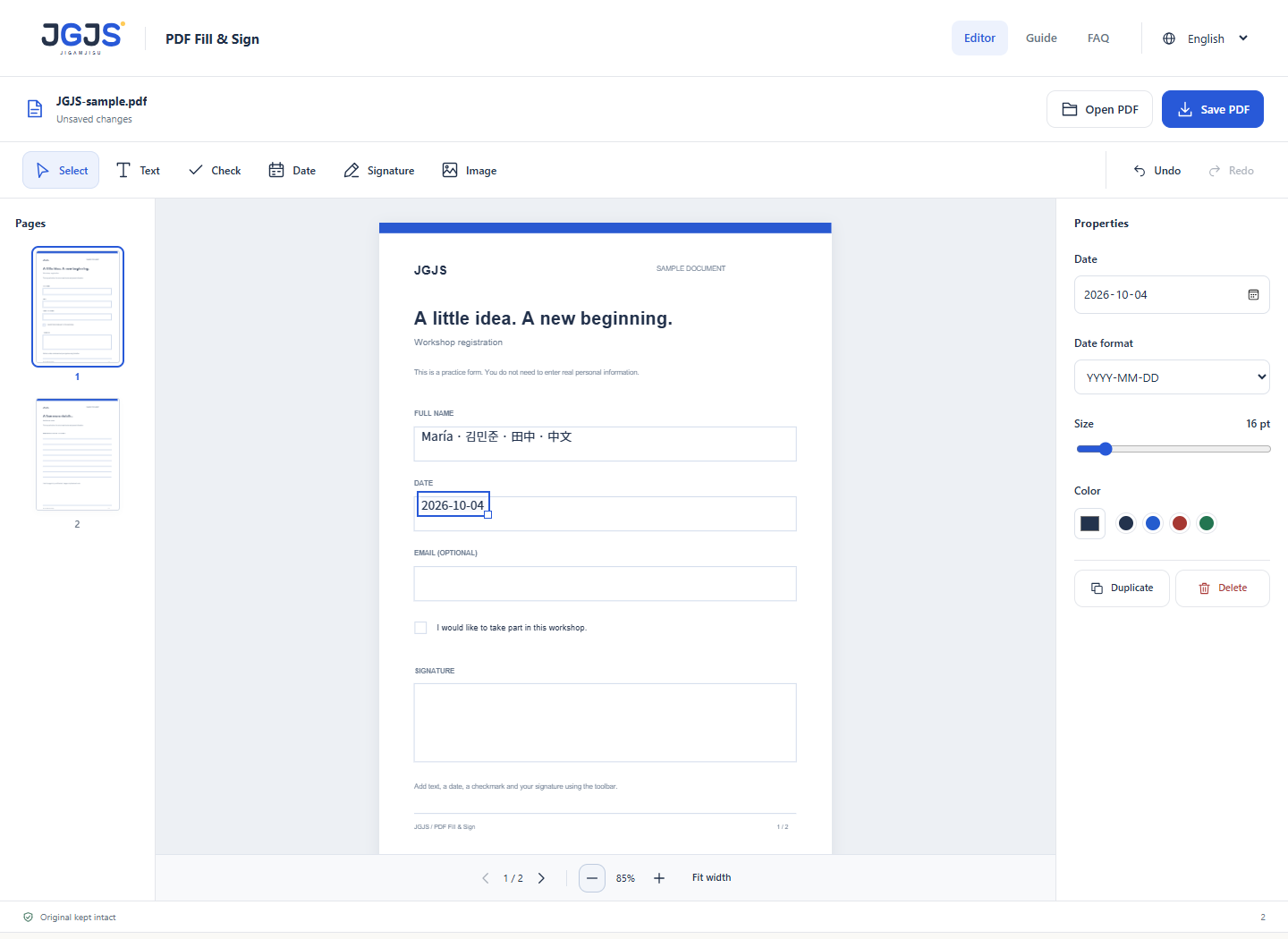
Add text, checks and dates
Choose a tool and tap where it belongs. Edit text, size and color in Properties. For dates, choose the format that your recipient expects.
Add your signature or an image
Draw in the signature box, select Use signature, then tap the PDF. Images can be PNG or JPEG. A drawn signature is an image, not a certificate-based digital signature.
Move, resize and undo
Drag an added item to move it. Use Properties to resize, duplicate or delete it. Undo and Redo let you step through changes. On desktop, Ctrl/Cmd+Z undoes an action.
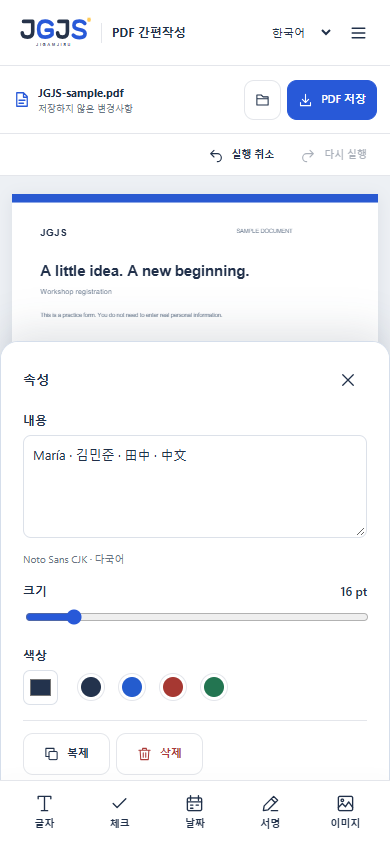
Use your phone comfortably
Tools sit at the bottom. Tap an item to open its Properties sheet; close the sheet to see more of the page. Use the page button to switch pages and the zoom controls to work precisely.
Save and check the result
Select Save PDF to download a new file. The original stays unchanged. Reopen the result and check every page before sending. Refreshing or closing this tab clears your editing session.