
Minecraft Skin Motion Preview & Share Image Tutorial
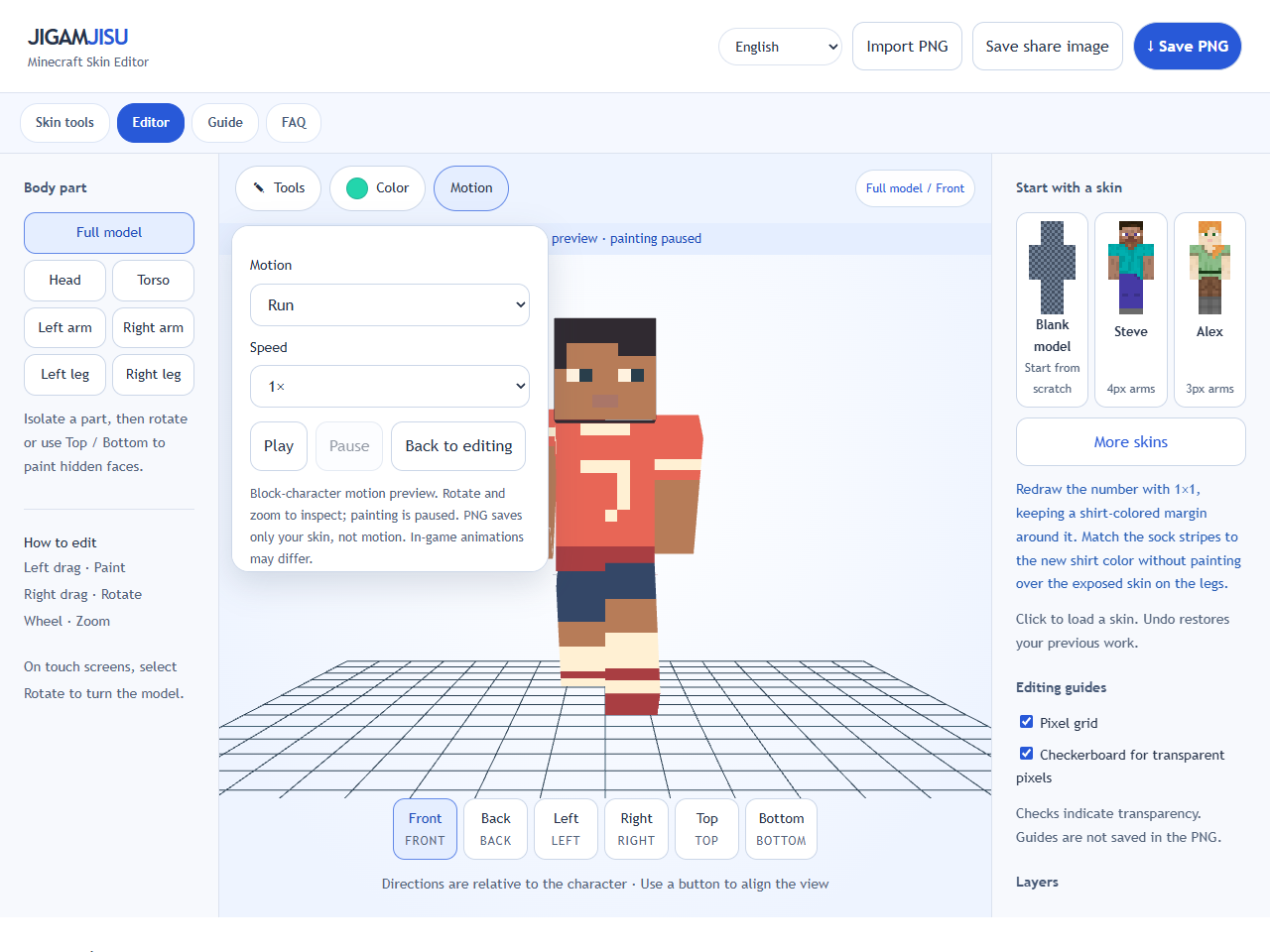
Open Team Uniform and open Motion above the character. Choose Run or Walk; the preview starts. Play resumes a paused preview, and Pause lets you inspect a particular pose while rotating or zooming.
Try Sit, Jump and Attack to inspect different limb positions. Look for cuffs, inner leg colors and borders that become visible as the limbs move. Painting is paused during motion; choose Back to editing before making changes.
Select Save share image to download a 1200×900 PNG showing the complete character from front and back. It uses a neutral pose with both skin layers, even if you are previewing a motion or editing just one part. The editor’s camera, skin and edit history are preserved.
The share card contains the JIGAMJISU address and is intended for messages or social posts. It is not a Minecraft skin file and is not uploaded automatically. Use Save PNG separately for the 64×64 game skin. Motion is only a preview, may differ from the game, and is not stored in either PNG as animation.